
Windows Server LACP 設定

前言
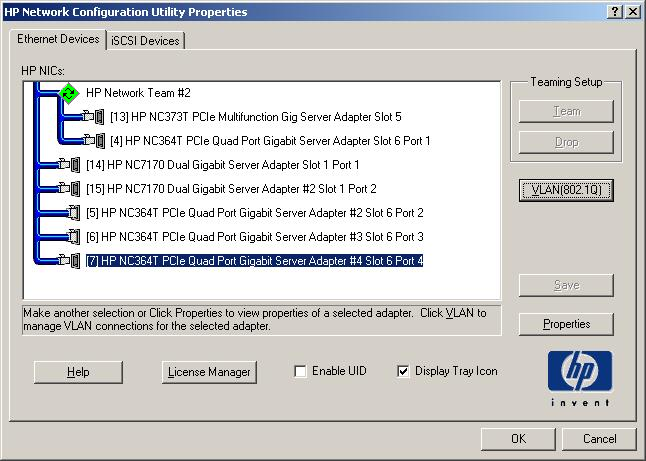
Windows在2008 R2以前並沒有OS內建的LACP可以設定,所以2003當年像是HP就有提供Network Configuration Utility程式來做NIC Teaming,直到2012之後才內建了LACP設定,此篇帶大家看看怎麼設定Windows Server LACP。
#Windows Server 2003 年代 HP Network Configuration Utility 畫面
環境說明
OS:Windows Server 2022
Switch:找台可以做LACP的Switch
鍵人我在這裡是用 Cisco 2960G、QNAP Switch M3224-24T MC-LAG 來進行 LACP 測試
Qnap Switch 詳細介紹請參照:https://mdfk.goddamn.idv.tw/books/qnap/page/qnap-switch-m3224-24t-mc-lag-multi-chassis-link-aggregation
Windows Server LACP 設定
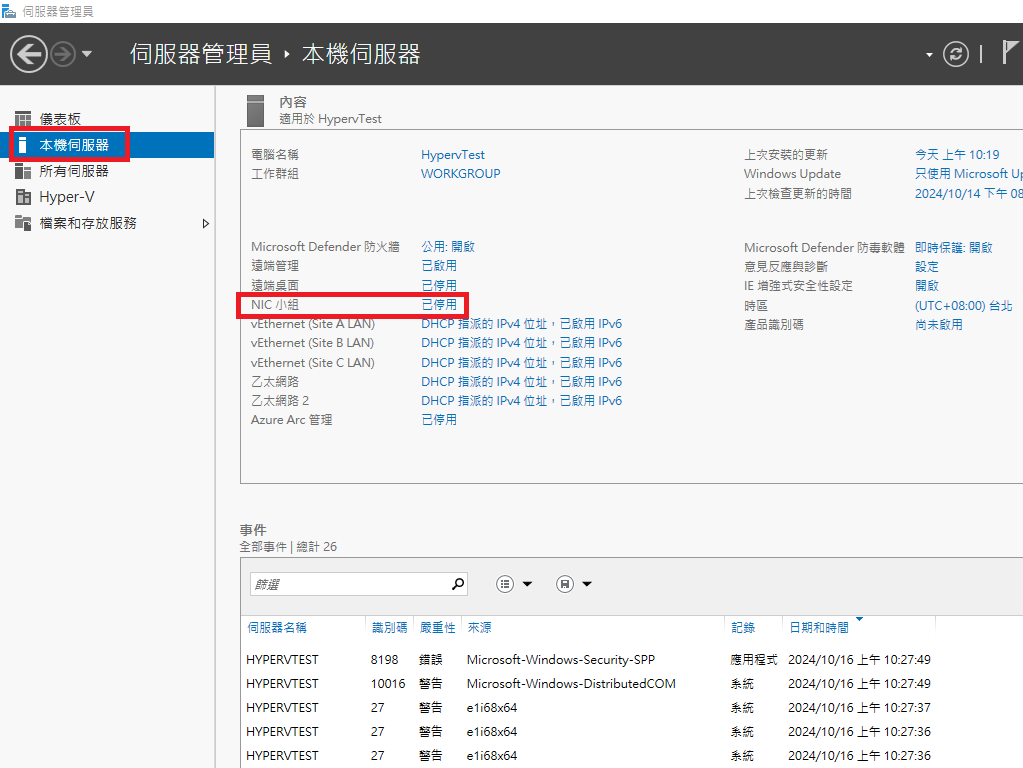
至 伺服器管理員 => 本機伺服器 => NIC Teaming
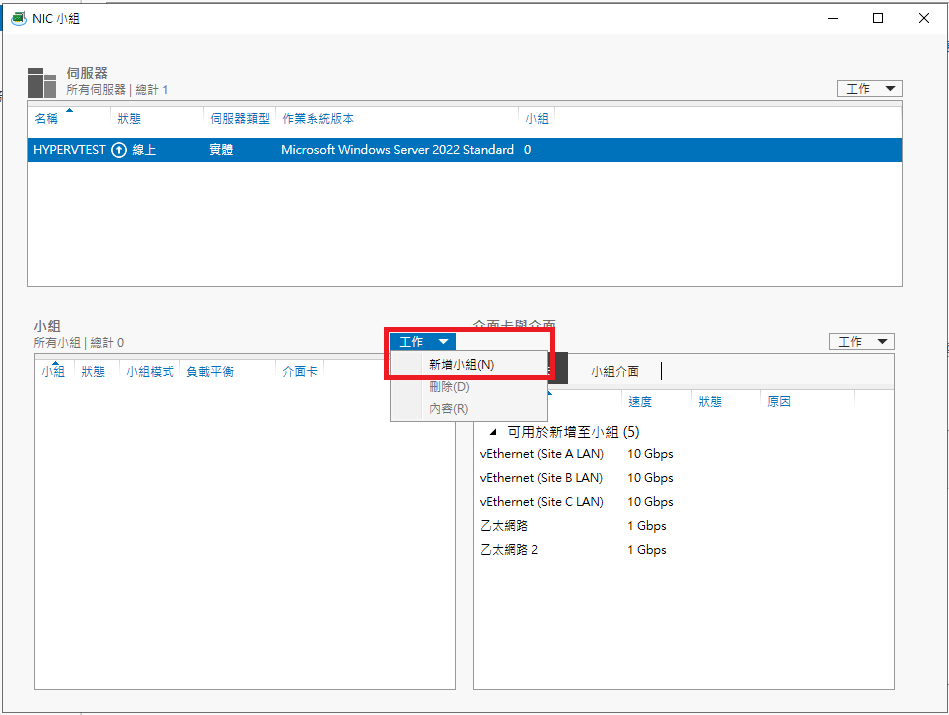
點選 工作 => 新增小組
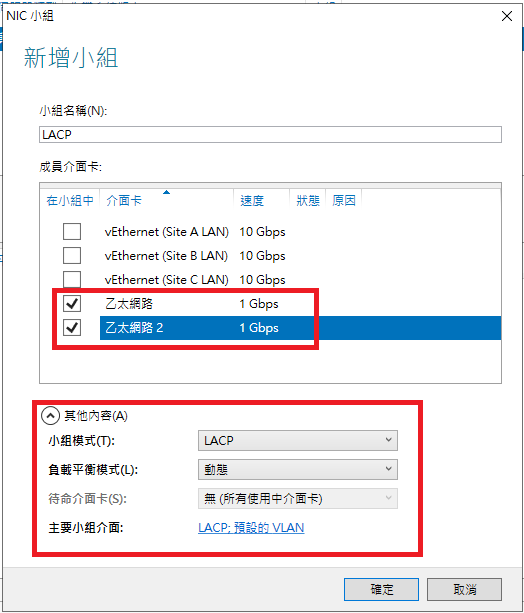
將Server的兩張網卡選起來,模式選擇LACP動態
建立完成
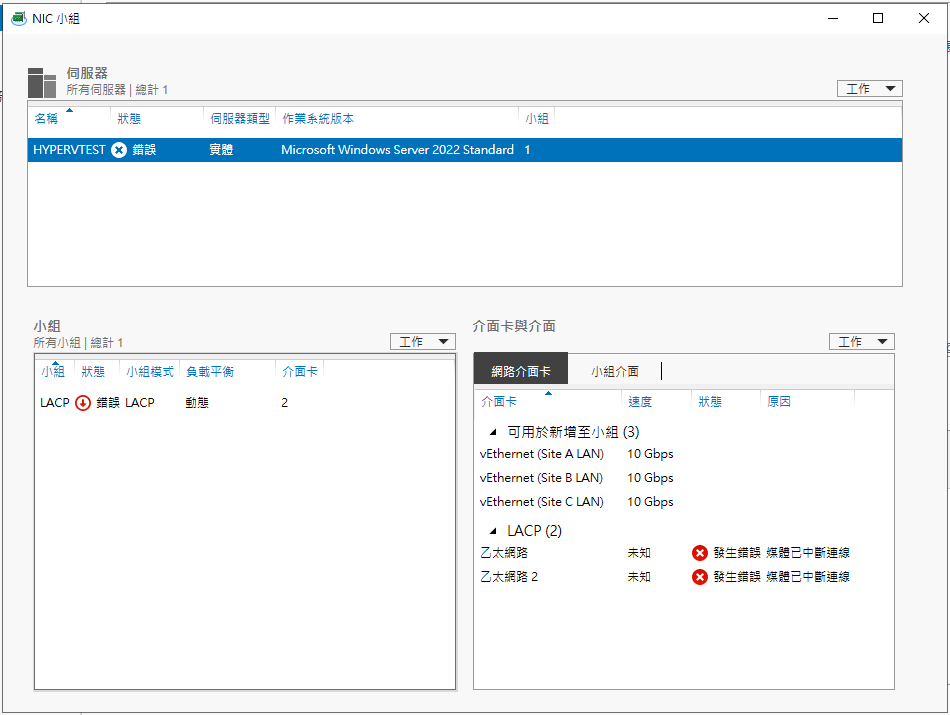
此時,將 Switch 的 LACP Port 接到 Server的NIC1、NIC2,如果一切都ok,LACP應該就起來了
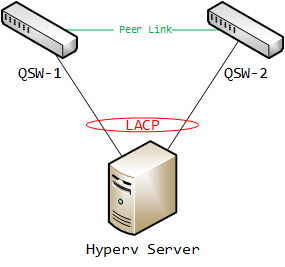
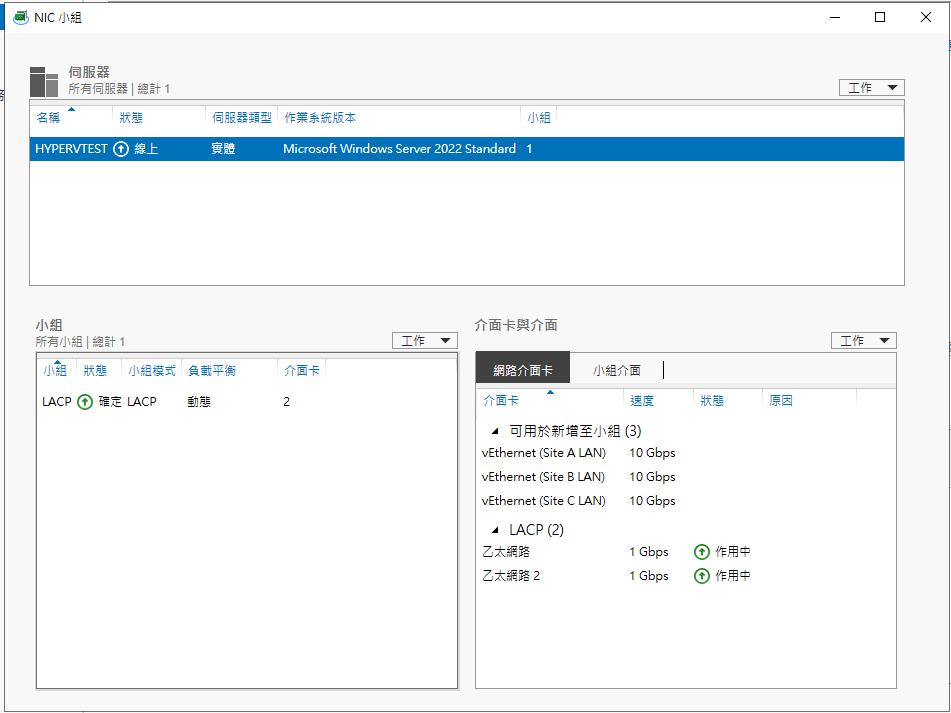
用Cisco 2960G來測試,可透過指令來確認LACP狀態
show etherchannel summary
show etherchannel port-channel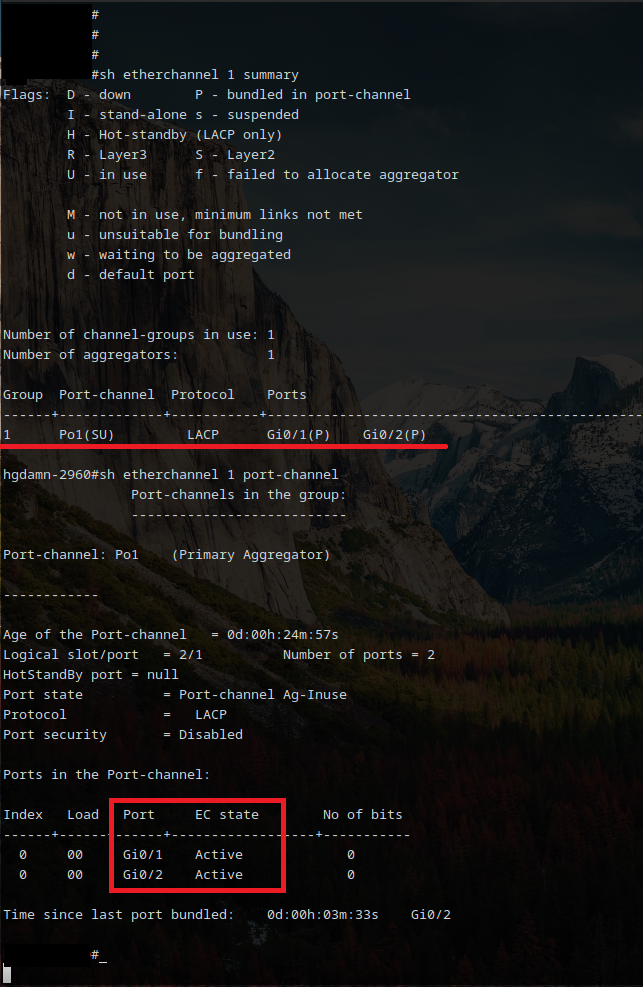
全文完,就這麼簡單 ......
No Comments